Monday, January 12, 2015

A Pie Chart View Control for iOS


Objective


PieChart was concived after my learning of linear algebra's simple vectors arithmetic. I found interesting the idea to start practicing my reacent learning in an interactive Pie Chart control. This control so far is in its basic stage but can be used by anybody and extended to fit your needs. This is a work in progress and any feedback ideas or improvements will be greatly appreciated. The code can be found here.

How to use it

You need to include in your project the following files:

- IMPieChartView.m
- IMPieChartView.h
- IMPieChartLayer.m
- IMPieChartLayer.h
- IMPieSliceDescriptor.m
- IMPieSliceDescriptor.h
- IMPieChartDecoratingView.m
- IMPieChartDecoratingView.h
- IMMacroToolbox.h

1) Then on your View Controller implement the protocols IMPieChartViewDelegate and IMPieChartViewDataSource

@interface IMPieChartViewController : UIViewController < IMPieChartViewDelegate, IMPieChartViewDataSource, IMPieChartDecoratingViewDelegate >

2) Declare a property of type IMPieChartView and of type IMPieChartDecoratingView

@property (nonatomic, strong) IBOutlet IMPieChartView * pieChartView;
@property (nonatomic, strong) IBOutlet IMPieChartDecoratingView * decoratingView;

3) declare a property of type UIImageView which will be used as the selector view, but here you can use any custom view you implement

@property (nonatomic, strong) UIImageView * selectorView;

4) Now on the viewDidLoad method you configure the pie using the following properties:

-(void)viewDidLoad {
   // create the chart pie
   self.pieChartView = [[IMPieChartView alloc] initWithFrame:CGRect(self.view.size.width, 0, 300, 300)];
   
   // setup the delegate
   self.pieChartView.pieChartDelegate = self;
   
   // setup the datasource
   self.pieChartView.pieChartDataSource = self;
   
   // this will enable showing a drop shadow under the pie chart
   self.pieChartView.enableShadow = YES;
   
   // this is a factor applied to the radius so the drop shadow can be shown without clipping
   self.pieChartView.radiusFactor = 0.9;
   
   // you can specify the type of animation you want the pie perform when dragging ends
   // or an slice is selected
   self.pieChartView.animationType = IMPieChartAnimationTypeMechanicGear;
   
   // you can locate the selection point in the top, left, right or bottom of the pie chart:
   // - IMPieChartSelectionTypeTop
   // - IMPieChartSelectionTypeBottom
   // - IMPieChartSelectionTypeLeft
   // - IMPieChartSelectionTypeRight
   self.pieChartView.selectionType = IMPieChartSelectionTypeBottom;
 
   // you can specify the animation type which could be one of the following
   // - IMPieChartAnimationTypeBouncing
   // - IMPieChartAnimationTypeMechanicGear
   self.pieChartView.animationType = IMPieChartAnimationTypeBouncing;
   
   ...

}

5) Now configure the decorating view at the bottom of viewDidLoad and add it to the view controller's root view. The decorating view is the one placed at the top of the view controller's root view and it contains the pie chart view and the selector view:


   self.decoratingView = [[IMPieChartDecoratingView alloc] initWithFrame:CGRectMake(0, 0, 300, 300)];
   // The decorating view calculates the size of the selector view base on this is
   // a percentage number of the size desired for the selector view.
   self.decoratingView.sizingFactor = 0.16;
   
   // this is the decorator's delegate which provide the selector view as well as the
   // contained pie chart view
   self.decoratingView.decoratorDelegate = self;


   // add decorator view to the view controller's root view
   [self.view addSubview:self.pieChartDecoratingView];

6) Add the pieChartView to the decorating view:

   [self.pieChartDecoratingView addSubview:self.pieChartView];


7) now you can add data per slice using the IMPieSliceDescriptor class. So for that declare a property of type NSArray on your view controller

   @property (nonatomic, strong) NSArray * data;

8) Now on your viewDidLoad method at the bottom after adding the pieChartView to the decoratingView, type the following:

self.data = @[[IMPieSliceDescriptor sliceWithCaption:@"Slice 1" 
                                               value:35 
                                               color:IMOpaqueHexColor(0xffd019)],
              [IMPieSliceDescriptor sliceWithCaption:@"Slice 2"
                                               value:29
                                               color:IMOpaqueHexColor(0xff7619)],
              [IMPieSliceDescriptor sliceWithCaption:@"Slice 3"
                                               value:11
                                               color:IMOpaqueHexColor(0x0066ff)],
              [IMPieSliceDescriptor sliceWithCaption:@"Slice 4"
                                               value:10
                                               color:IMOpaqueHexColor(0xff00cc)],
              [IMPieSliceDescriptor sliceWithCaption:@"Slice 5"
                                               value:8
                                               color:IMOpaqueHexColor(0xc60329)],
              [IMPieSliceDescriptor sliceWithCaption:@"Slice 6"
                                               value:7
                                               color:IMOpaqueHexColor(0x9bd305)]];


NOTE:

IMOpaqueHexColor is a macro declared in IMMacroToolbox.h that is used to get some more interesting colors out from the ones that come in stock, and it uses as input the hex value of the color.

9) Now let's implement the pie chart's delegate methods as follows:
-(void)pieChart:(IMPieChartView *)pieChart didSelectSlice:(IMPieSliceDescriptor *)slice {
   // Here you get the selected slice, which is the slice that passes
   // through the selection point.
   self.infoLabel.text = [NSString stringWithFormat:@"%@ - %@%%", slice.caption, slice.value];
}

-(void)pieChartIsReady:(IMPieChartView *)pieChart {
   // Here you can perform some extra initialisation code whenever you load new data
   // this method will be called. In this case we are rotating to the first slice in
   // the pie.
   [pieChart rotateToSlice:0 animated:YES];

}

NOTE:

The macro im_log allows to print debug messages in the console, this macro is declared in the IMMacroToolbox.h and is available when the DEBUG global macro is defined. Basically when you are using the DEBUG scheme.

10) Now let's implement the data source methods as follows:

-(NSUInteger)pieChartSliceCount:(IMPieChartView *)pieChart {
   // Here you provide the number of items in the data array.
   return self.data.count;
}

-(IMPieSliceDescriptor *)pieChart:(IMPieChartView *)pieChart sliceForIndex:(NSInteger)index {
   // Here you provide the slice descriptor for the index requested.
   return self.data[index];

}

11) Finally let's implement the decorator's delegate methods:

-(UIView *)decoratorSelectorView {
   return self.selectorView;
}

-(IMPieChartView *)decoratorPieChartView {
   return self.pieChartView;
}

That's pretty much it.

Saturday, December 13, 2014

How to get rid of 'Failed to instantiate the default view controller for UIMainStoryboardFile...'

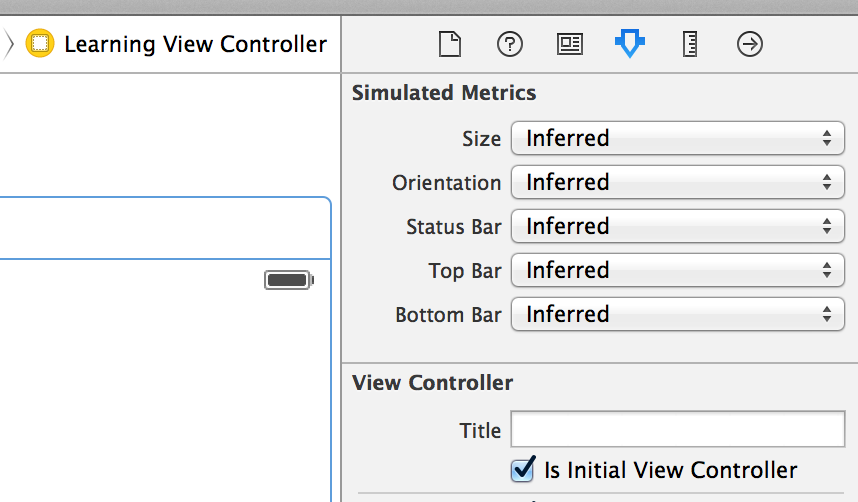
When I was trying to replace the default story board created in an single view project on Xcode I followed the steps below, but then I got the error message:

'Failed to instantiate the default view controller for UIMainStoryboardFile...'

So if you find this same error this is the way I solved it and the steps to replace the default story board.

To add a main story I need to follow this steps:

1) File > New > User Interface > Storyboard and call it “Newstory.storyboard"
2) Open Support Files / Info.plist
3) Search for "Main storyboard file base name” and replace the “Main” storyboard for the name of my newly added storyboard file “Newstory” without the .storyboard extension
4) Create a view controller and assign it to the story board’s view controller

5) Select the new storyboard and in the “Attributes inspector” make sure the “Is initial View Controller” is selected.


6) Build and you’ll probably see this error message:

Failed to instantiate the default view controller for UIMainStoryboardFile...

7) Just clean the build Shift + Command + K and re-build and the error should be gone.

Monday, August 11, 2014

Audeplayer now on the AppStore

My previously announced app called "music++" (since February of 2013) is now on the Apple AppStore under the name "Audeplayer" Check it out, currently is in its minimum viable product stage, so it will evolve into a much feature reach app that hopefully will find its way in the AppStore. If you download it and it happen to be of your satisfaction please give it a rate/review if possible, that'll help my app to bubble up from the waters of AppStore. :)

Saturday, February 23, 2013

music++ is coming to the App Store soon

This is an screenshot of my upcoming app, it will just simplify the music player experience.


Wednesday, March 28, 2012

CALayer Rotation in iOS


We will use a CALayer because although it's like a UIView on the other side is a lightweight object and it can be animated, rotation will not require much of animation in this sample but will require a bit of mathematics so we will make use of GLKit's GLKMath C functions to make all the calculations, so let's get started.

Basically to rotate a layer we have to perform the following steps:

1. Capture the touch and follow the finger through the screen

for that we create a UIView let's call it RotationView


//
//  RotationView.h


@interface RotationView ()
{
   GLKVector3 lastTouchVector_;
   GLKVector3 originVector_;
}

- (GLKVector3) touchPointToVector:(CGPoint) point;

@end

Notice that we implement UIView's touch event methods to detect touches and to follow the finger through the screen

//
//  RotationView.m


#import <QuartzCore/QuartzCore.h>
#import <GLKit/GLKMath.h>
#import "RotationView.h"

@implementation RotationView

- (id)initWithFrame:(CGRect)frame
{
   self = [super initWithFrame:frame];
   if (self)
   {
      CALayer * innerLayer = [CALayer layer];
      innerLayer.frame = CGRectMake(0, (self.frame.size.height - self.frame.size.width) / 2.0f,
                            self.frame.size.width, self.frame.size.width);
      innerLayer.contents = (id)[UIImage imageNamed:@"Image.png"].CGImage;
      originVector_ = GLKVector3Make(innerLayer.position.x, innerLayer.position.y, 0.0f);
      [self.layer addSublayer:innerLayer];
   }
   return self;
}

#pragma touch events

- (void) touchesBegan:(NSSet *)touches withEvent:(UIEvent *)event
{
   UITouch * touch = [touches anyObject];
   CGPoint touchPoint = [touch locationInView:self];
   ...
}

- (void) touchesMoved:(NSSet *)touches withEvent:(UIEvent *)event
{
   UITouch * touch = [touches anyObject];
   CGPoint touchPoint = [touch locationInView:self];
   ...
}


2. Calculate the angle between the current point and the last point

we need to convert the points into tree dimensional vectors (the reason for tree dimensional vectors is explained on point 3.) and translate the UIView origin to the center of innerLayer's so we will use the following code to accomplish that:

- (GLKVector3) touchPointToVector:(CGPoint)point
{
   GLKVector3 touchVector = GLKVector3Make(point.x, point.y, 0.0f);
   return GLKVector3Normalize(GLKVector3Subtract(touchVector, originVector_));
}

3. Calculate the rotation direction whether it is clockwise or counter clockwise.

The angle will be calculated using the result of subtracting the vectors currentTouchVector from lastTouchVector_ and using the length of the resulting vector as the displacement angle as in the following code:

- (CGFloat) calculateRotationAngle:(CGPoint) point
{
   GLKVector3 currentTouchVector = [self touchPointToVector:point];
   CGFloat rotationAngle = GLKVector3Length(GLKVector3Subtract(currentTouchVector, lastTouchVector_));
   GLKVector3 crossProd = GLKVector3CrossProduct(currentTouchVector, lastTouchVector_);
   CGFloat rotationDirection = crossProd.z > 0 ? -1 : 1;
   lastTouchVector_ = currentTouchVector;
   return rotationAngle * rotationDirection;
}

To keep always a circular path we normalized the resulting vector (take a look to the last line in point's 2. sample code) so it's length always is 1 ensuring the user's finger moves following the circular path we want.

Additionally notice that to calculate the direction of the rotation whether it is clockwise or counter clockwise we use the Cross Product of two tree dimensional vectors. This is the main reason to use tree dimensional vectors because a Cross Product only operates on them and to keep the code as homogeneous as possible by always using GLKVector3.

The Cross product's result is a perpendicular vector to the ones being multiplied and depending on the sign of the Z axis we can determine the rotation direction.

4. Apply rotation transform using the calculated angle which should consider the rotation direction.

We apply the rotation while the finger moves through the screen and in order to accomplish that we use the following code on UIView's touchesMove method:

- (void) touchesBegan:(NSSet *)touches withEvent:(UIEvent *)event
{
   UITouch * touch = [touches anyObject];
   CGPoint touchPoint = [touch locationInView:self];
   assert([self.layer.sublayers count] == 1);
   CALayer * innerLayer = [self.layer.sublayers objectAtIndex:0];
   if ([innerLayer hitTest:touchPoint])
   {
      lastTouchVector_ = [self touchPointToVector:touchPoint];
   }
}

- (void) touchesMoved:(NSSet *)touches withEvent:(UIEvent *)event
{
   UITouch * touch = [touches anyObject];
   CGPoint touchPoint = [touch locationInView:self];
   assert([self.layer.sublayers count] == 1);
   CALayer * innerLayer = [self.layer.sublayers objectAtIndex:0];
   if ([innerLayer hitTest:touchPoint])
   {
      CATransform3D currentTransform = self.layer.sublayerTransform;
      CGFloat rotationAngle = [self calculateRotationAngle:touchPoint];
      self.layer.sublayerTransform = CATransform3DRotate(currentTransform, rotationAngle, 0, 0, 1);
   }
}

this way is a simple algorithm to accomplish rotation of a CALayer while following the finger on the screen describing a circular path.


You can find the code here... Enjoy!